
The Chocon learning browserSAFE and FOCUSED
- Structured learning time
- Eye and back care
- Suitable content
- Parents stay involved

Safety, health, and privacy while your child learns
Chocon keeps learning inside parent-approved sources, supports healthy breaks, and sets clear boundaries around camera, microphone, and personal data.
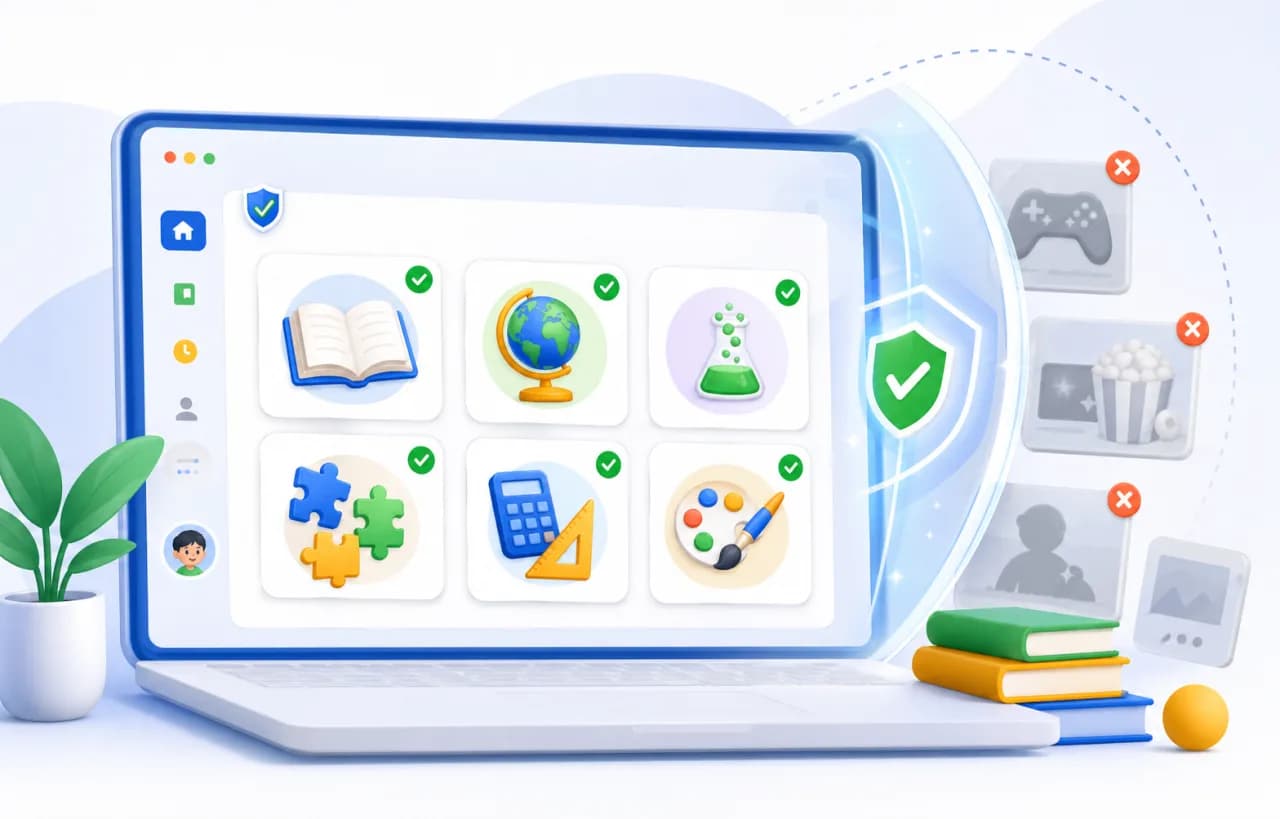
Age-fit learning content
Parents choose approved learning sources; Chocon reduces the chance of drifting outside the learning scope.
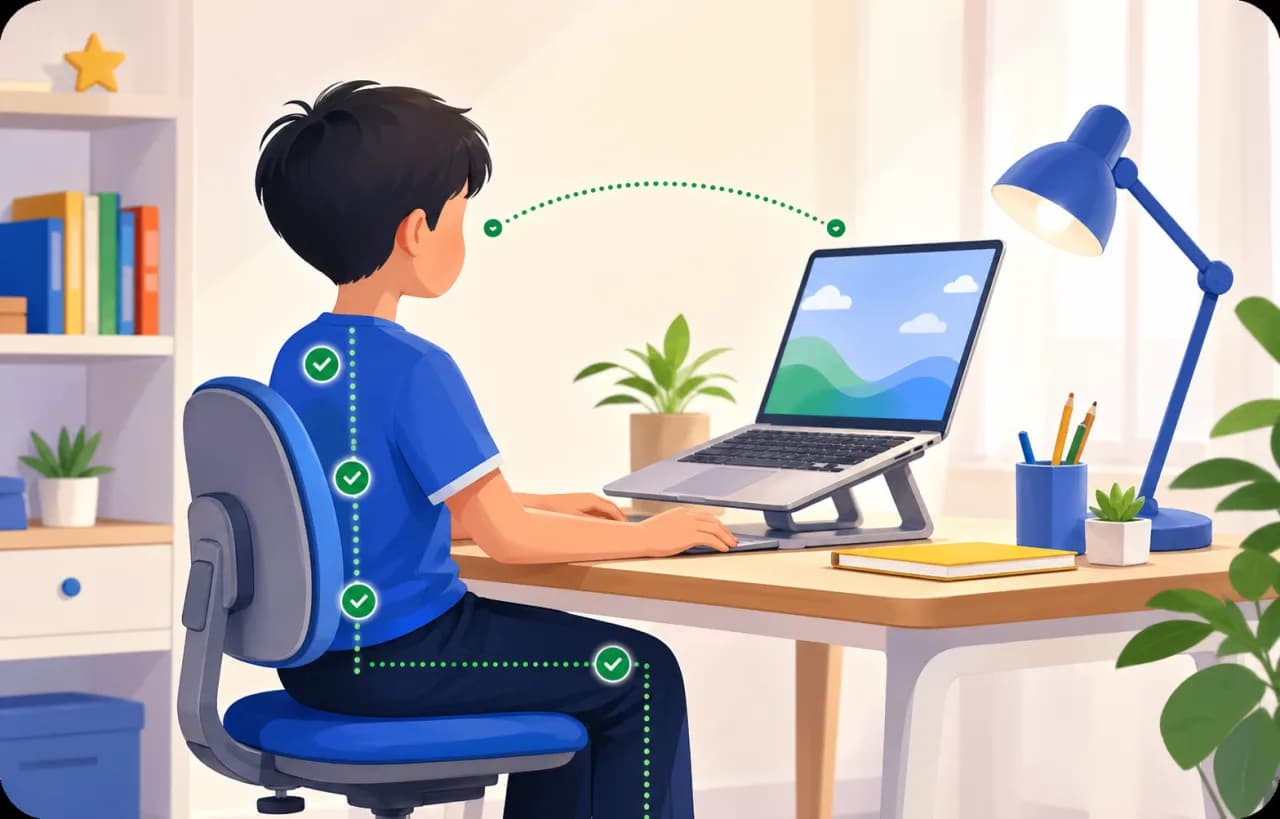
Posture & distance
Optional camera-based reminders for healthy posture and distance. No video is stored.

Eye & movement breaks
Gentle break reminders help protect eyes and encourage movement between sessions.
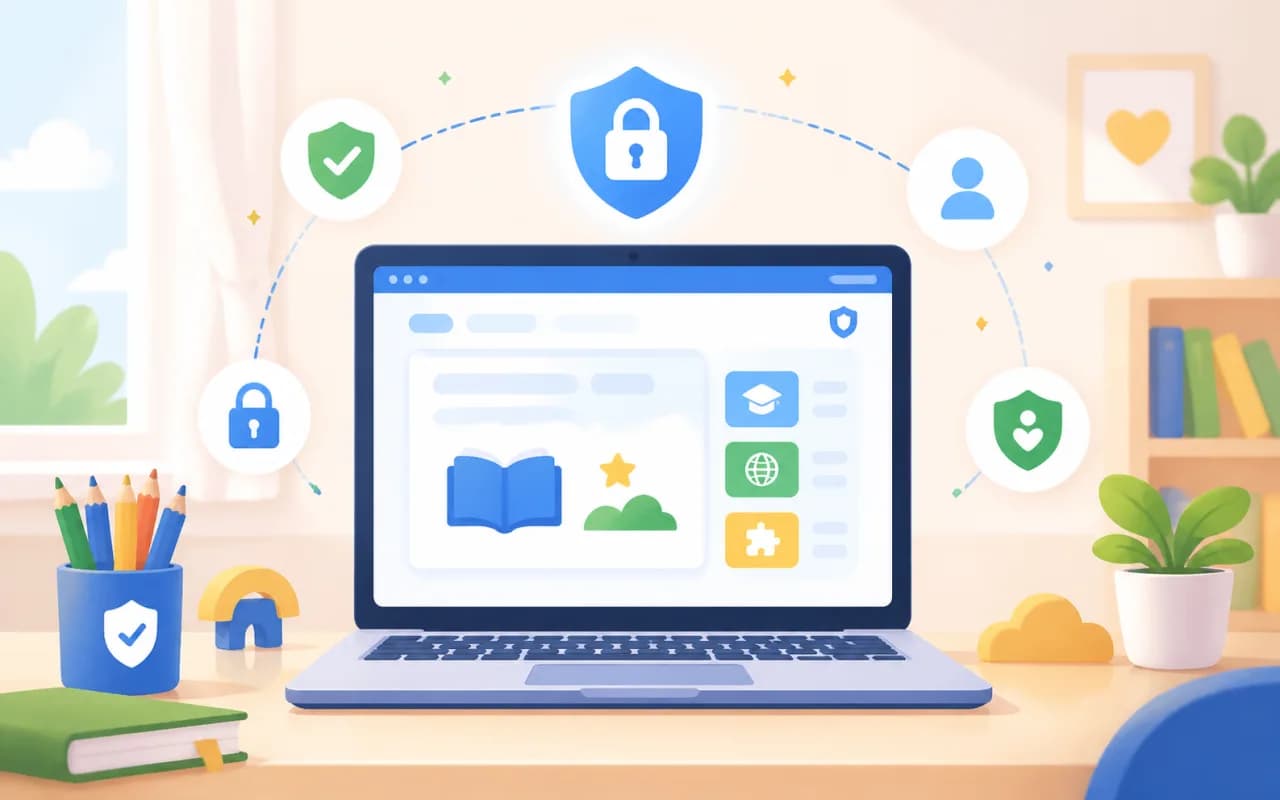
Minimal data
Chocon collects only what is needed to operate, sync policies, and support safety.
Start in 3 steps
Parents spend about 15-30 minutes signing in, installing Chocon Desktop on the child’s computer, and pairing the device.
Sign in to the parent dashboard
Use email to enter Chocon and create a learning profile for your child.
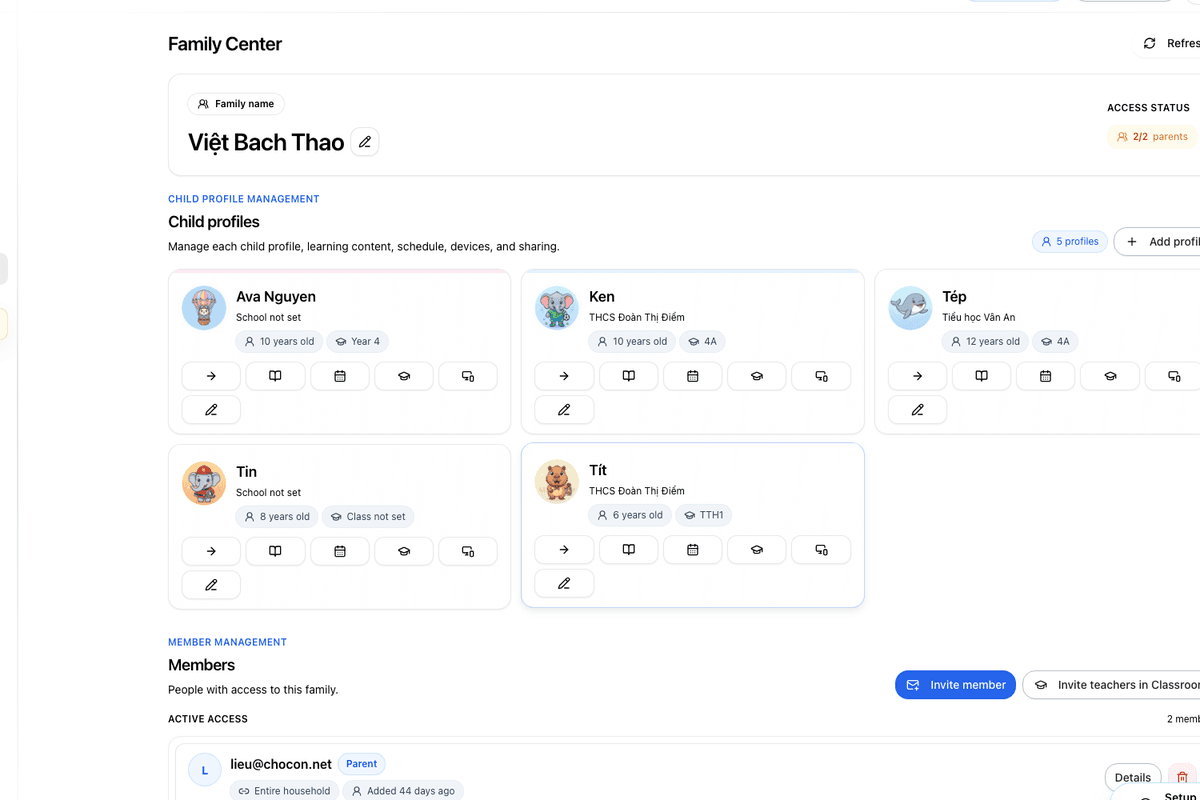
Install Chocon Desktop on your child's computer
Choose the right Windows or Mac installer, then open it on the computer your child uses for learning.
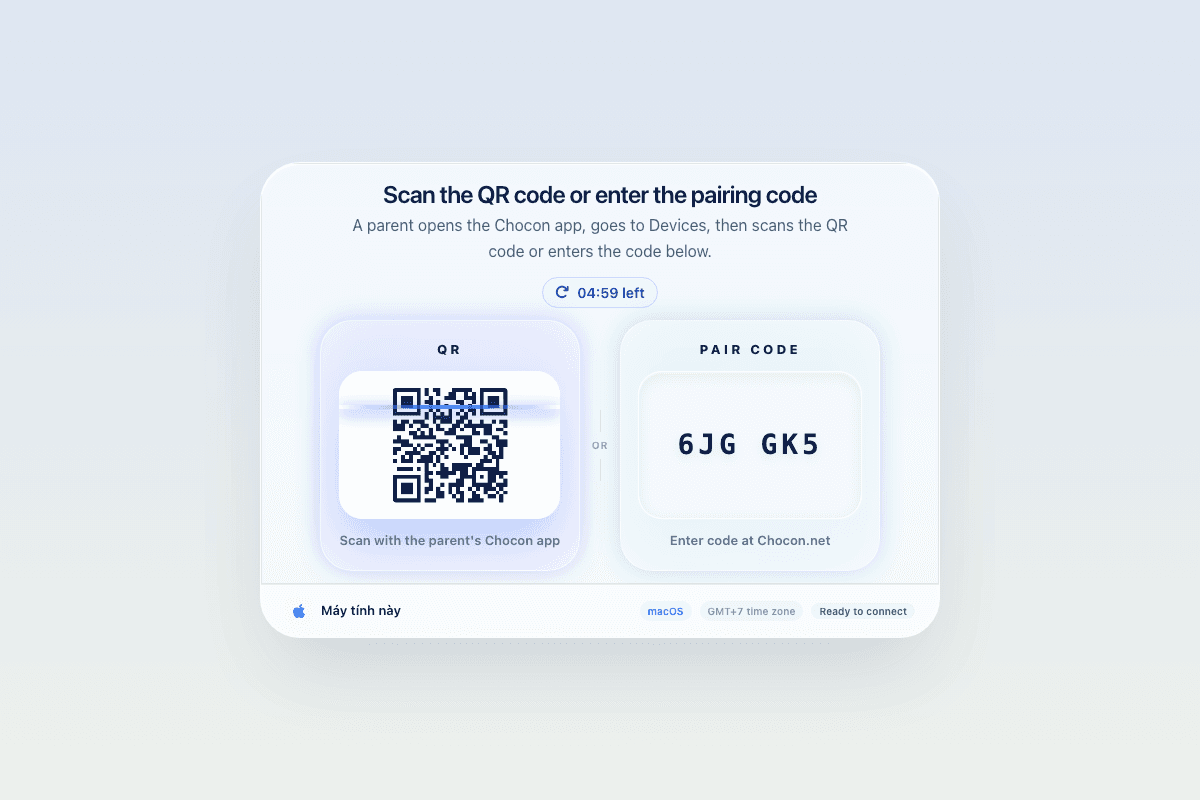
Pair the computer and choose a schedule
Enter the six-character code, choose approved learning sources, and set the first schedule.
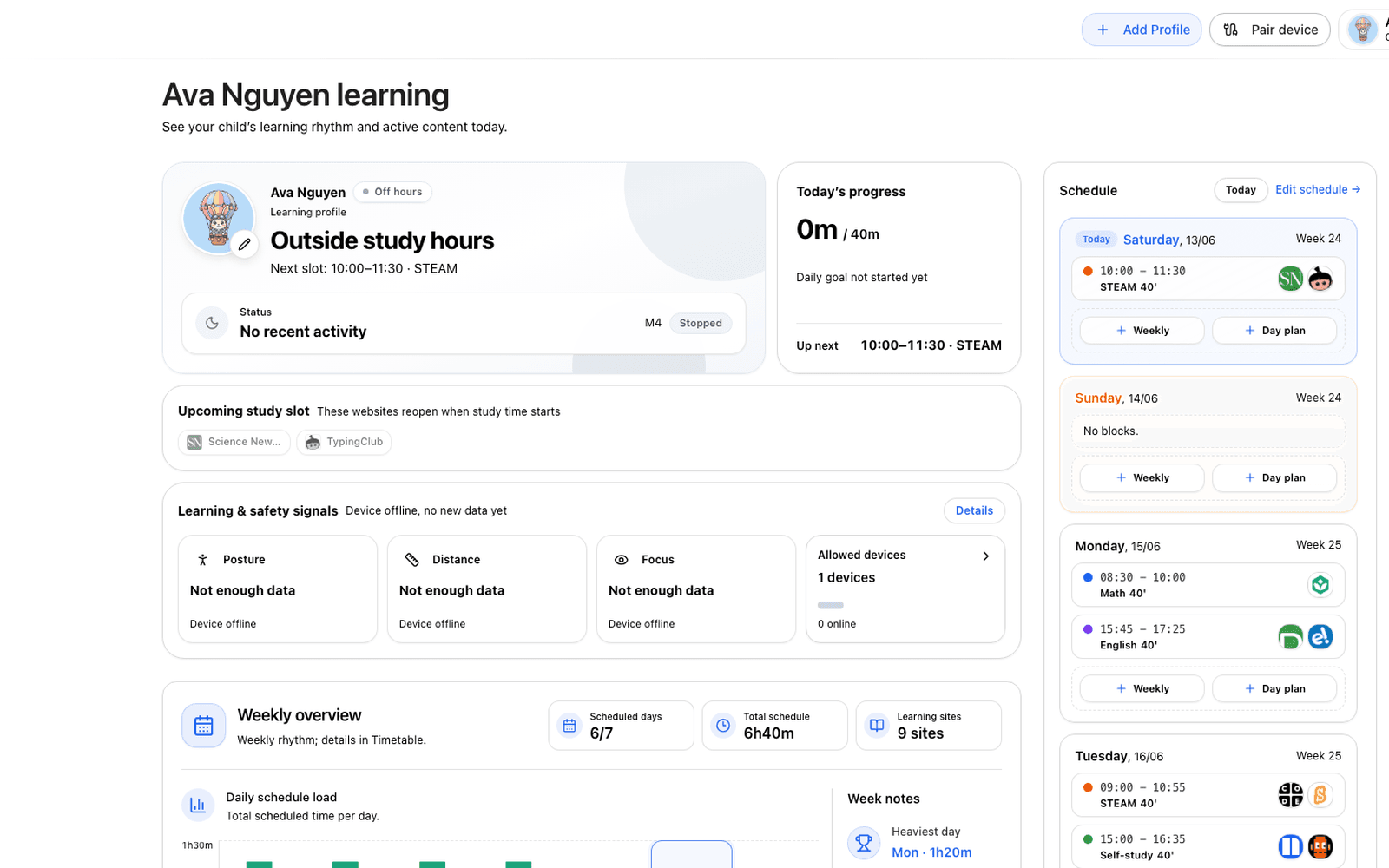
Safety layers while your child learns
Chocon helps children learn from approved sources, on schedule, with healthy breaks and optional posture reminders.
Only learn from sources parents approve
Children can open only websites parents have approved, reducing detours into content outside the learning scope.
Fewer unexpected sites during learning time.
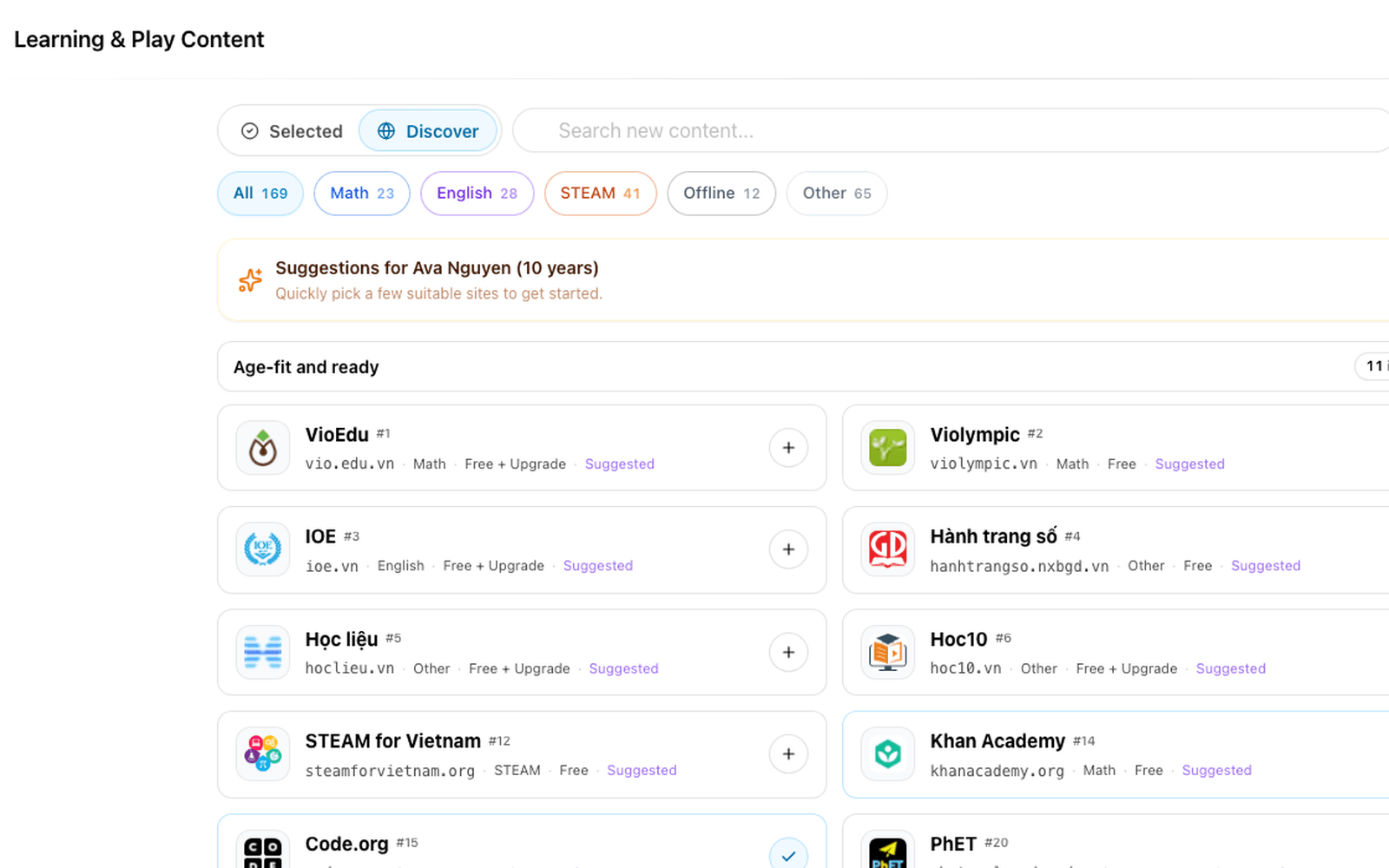
Learn on time, pause at the right moments
Parents set schedules in the dashboard. Chocon opens, locks, or reminds based on the timetable.
Each day has a clearer learning rhythm.
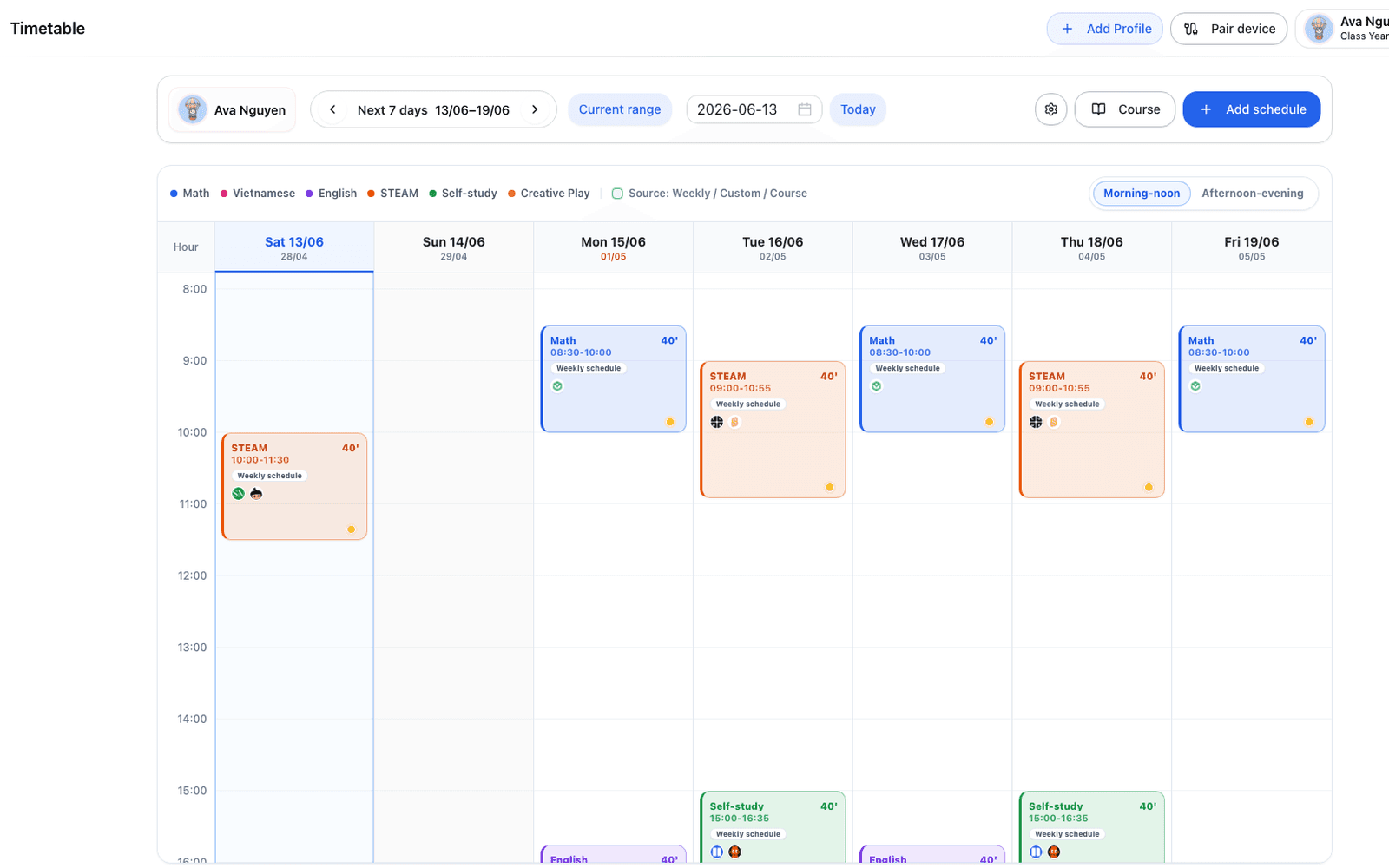
Break reminders to reduce eye strain
Gentle reminders help children look away, move lightly, and pause between learning sessions.
Children return to lessons more calmly.
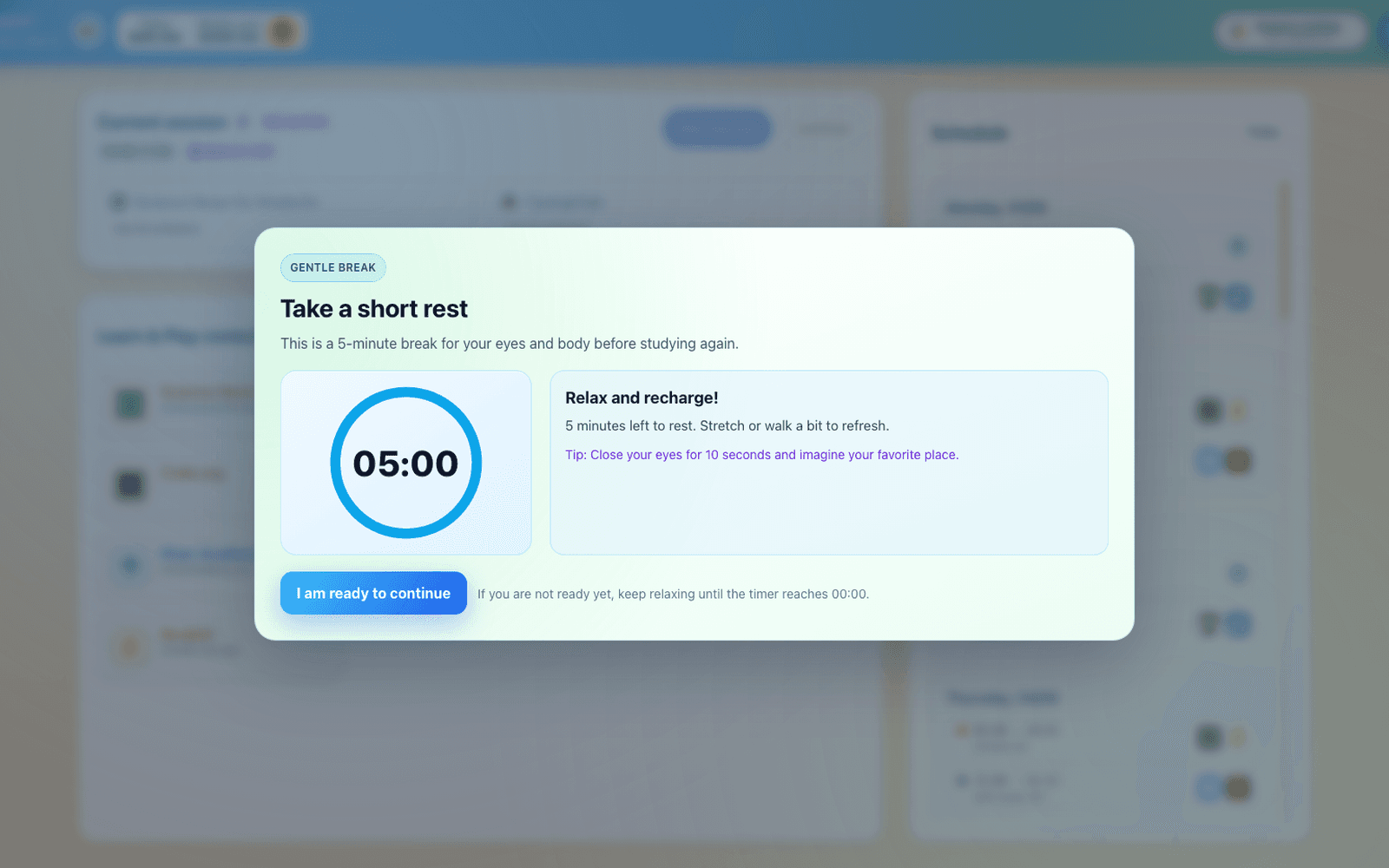
Distance and posture reminders
When parents enable it, Chocon uses the camera to remind healthy posture and distance. No video is stored.
Parents decide when this feature is active.
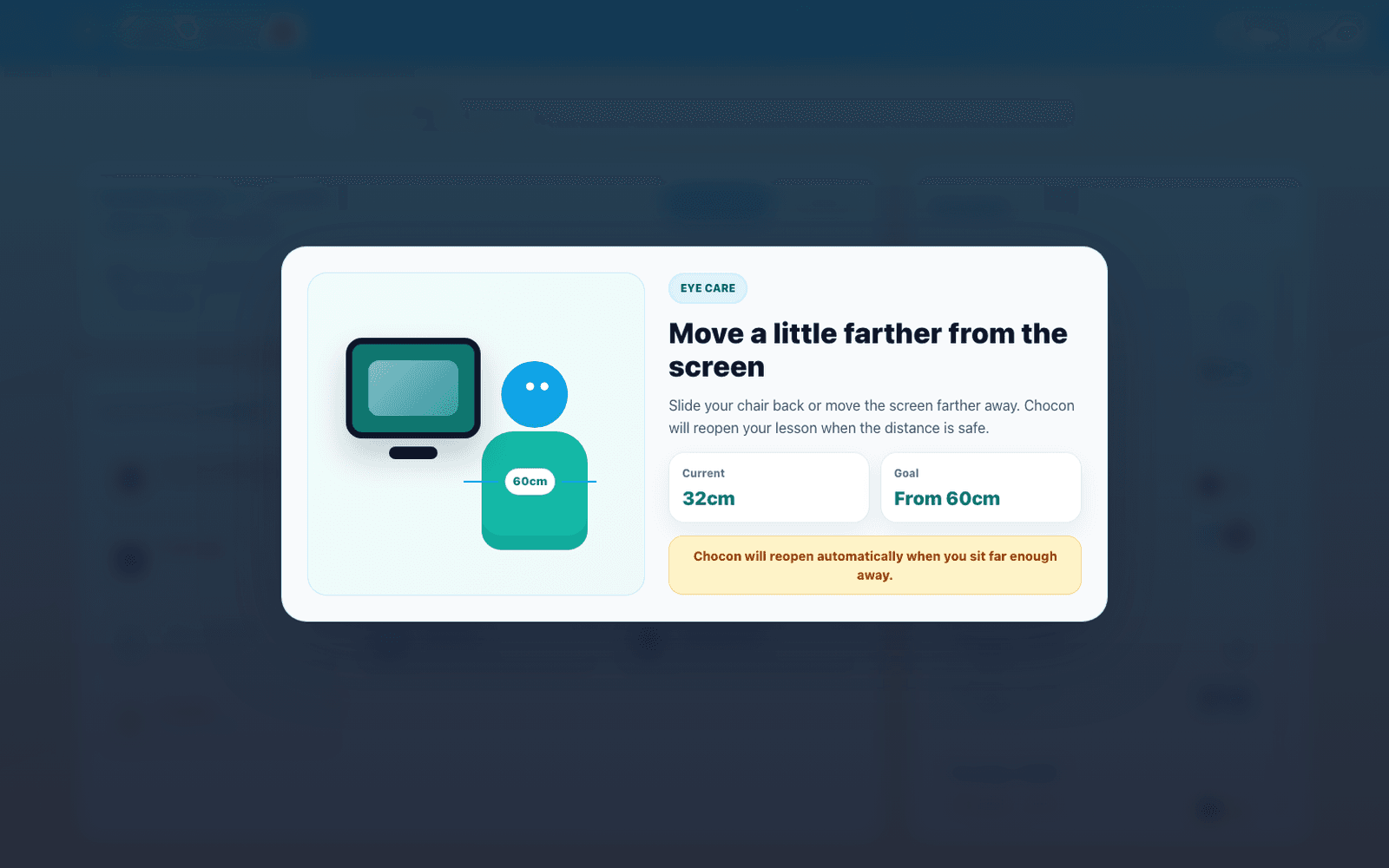
Parents prepare in the dashboard
Prepare learning sources and schedules, and review device status in one place.
One place to check and adjust the family setup.
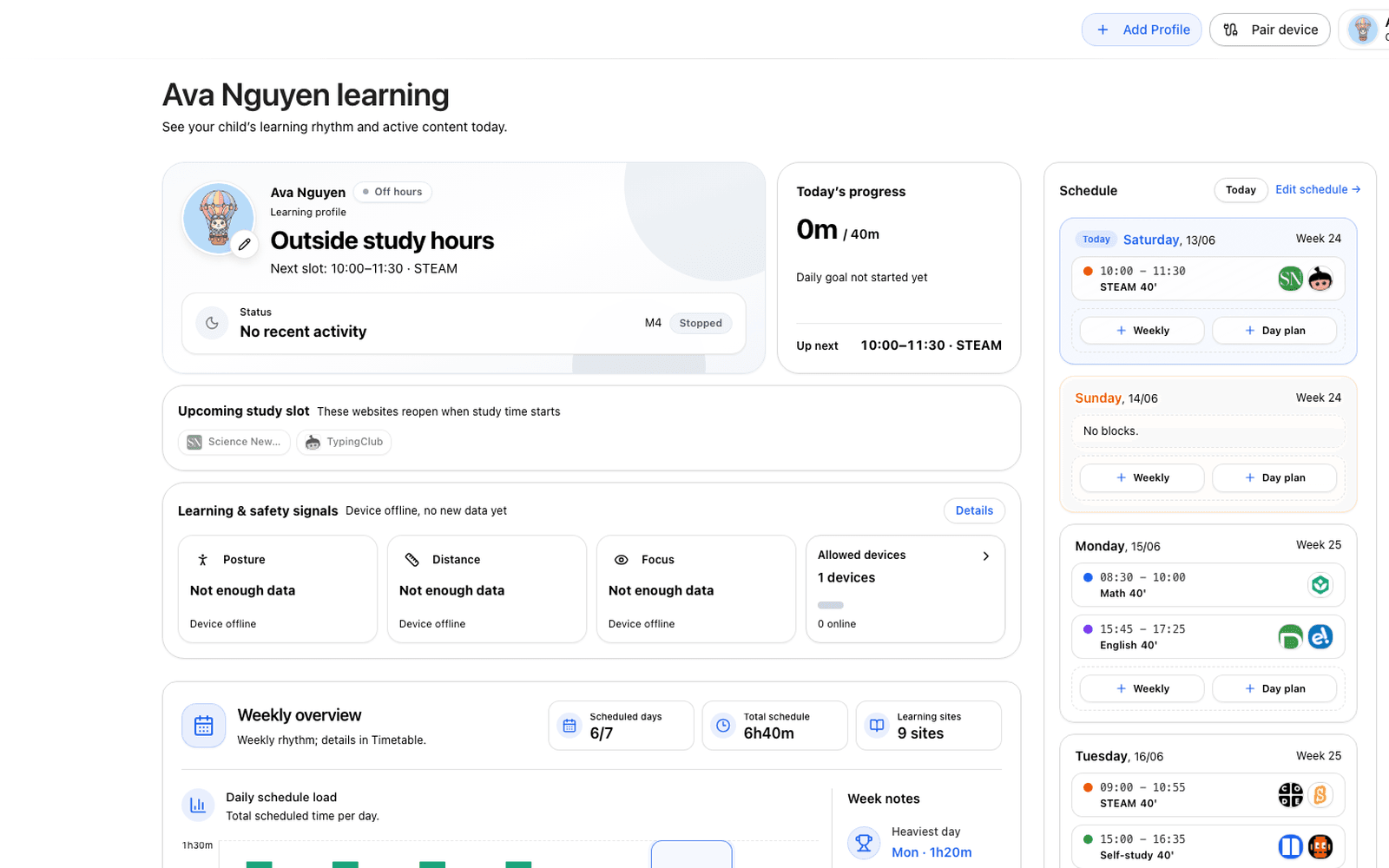
A separate learning profile for each child
Desktop opens only profiles parents allow, keeping content and schedules separate for each child.
Children enter the right learning space.
Prod Beta experience
Chocon is open for families to try Prod Beta and share feedback. Plan details appear only when billing and access enforcement are publicly ready.
Chocon is open for Prod Beta
Parents can continue with email to try Chocon and complete their family setup. Pricing and plan access details will be published only when billing and access enforcement are publicly ready.
Continue with emailInstall Chocon Desktop on your child's computer
Sign in, choose your child's profile, then download the right Windows or Mac installer.
What you need to do
- Sign in with email
- Choose or create your child's profile
- Download the installer that matches the computer
- Open Chocon Desktop and pair with the six-character code
Choose an installer

Windows 10 21H2+ / Windows 11
During install, Windows may ask for an administrator password.

Choose Apple Silicon, Intel, or the dedicated Catalina build for older Macs.
Frequently asked questions
Common questions parents ask before installing and pairing.